
Teaching Assistants
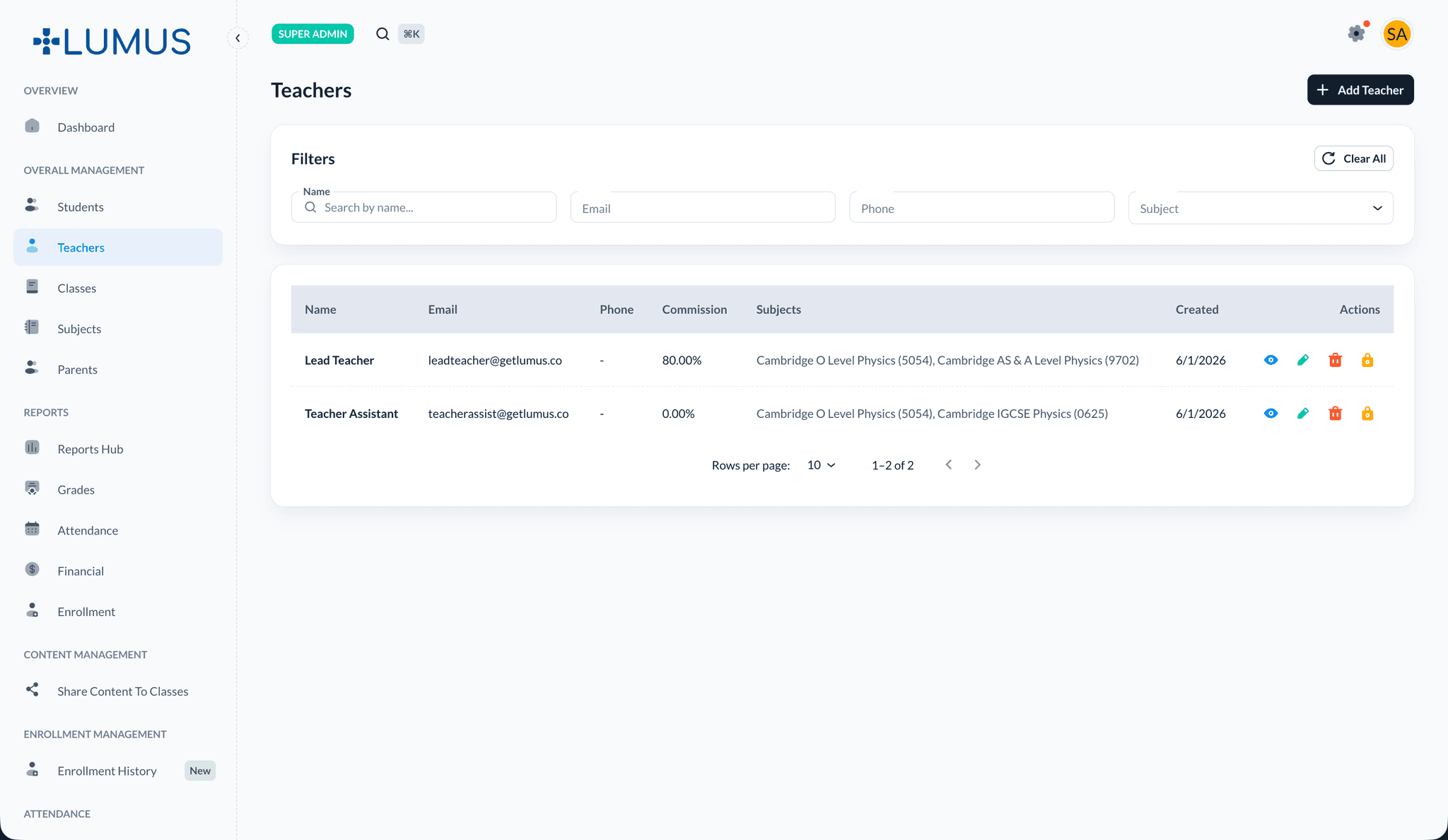
Add Teaching Assistants who help run specific classes, and let teachers and TAs manage their own rosters
Teaching Assistants
A Teaching Assistant (TA) is a staff member who helps a lead teacher run one or more specific classes. A TA can do everything a lead teacher can do on the classes they're assigned to — manage content, assignments, announcements, attendance, grading, files, and Zoom — plus manage the class roster (enroll and unenroll students).
TAs are scoped strictly to their assigned classes. They cannot touch classes they aren't assigned to, and they cannot do cross-class admin work (creating classes, assigning teachers, editing fee structures, or managing invoices).
Roster management for teachers and TAs
Alongside the TA role, lead teachers and TAs can now manage enrollments on their own classes — enrolling and unenrolling students directly, without needing an admin. Previously only admins could change a class roster.
This is scoped to class ownership: a teacher or TA can only manage the roster of a class they lead or are assigned to.
Creating a Teaching Assistant
TAs are created through the existing teacher flow with a role toggle — there is no separate "TA" screen.
- Go to Teacher Management and add (or edit) a staff member.
- In the Role selector, choose Teaching Assistant (the default is Lead Teacher).
- Save. The platform provisions a linked user account with the TA role, using the same email-based account setup as regular teachers.
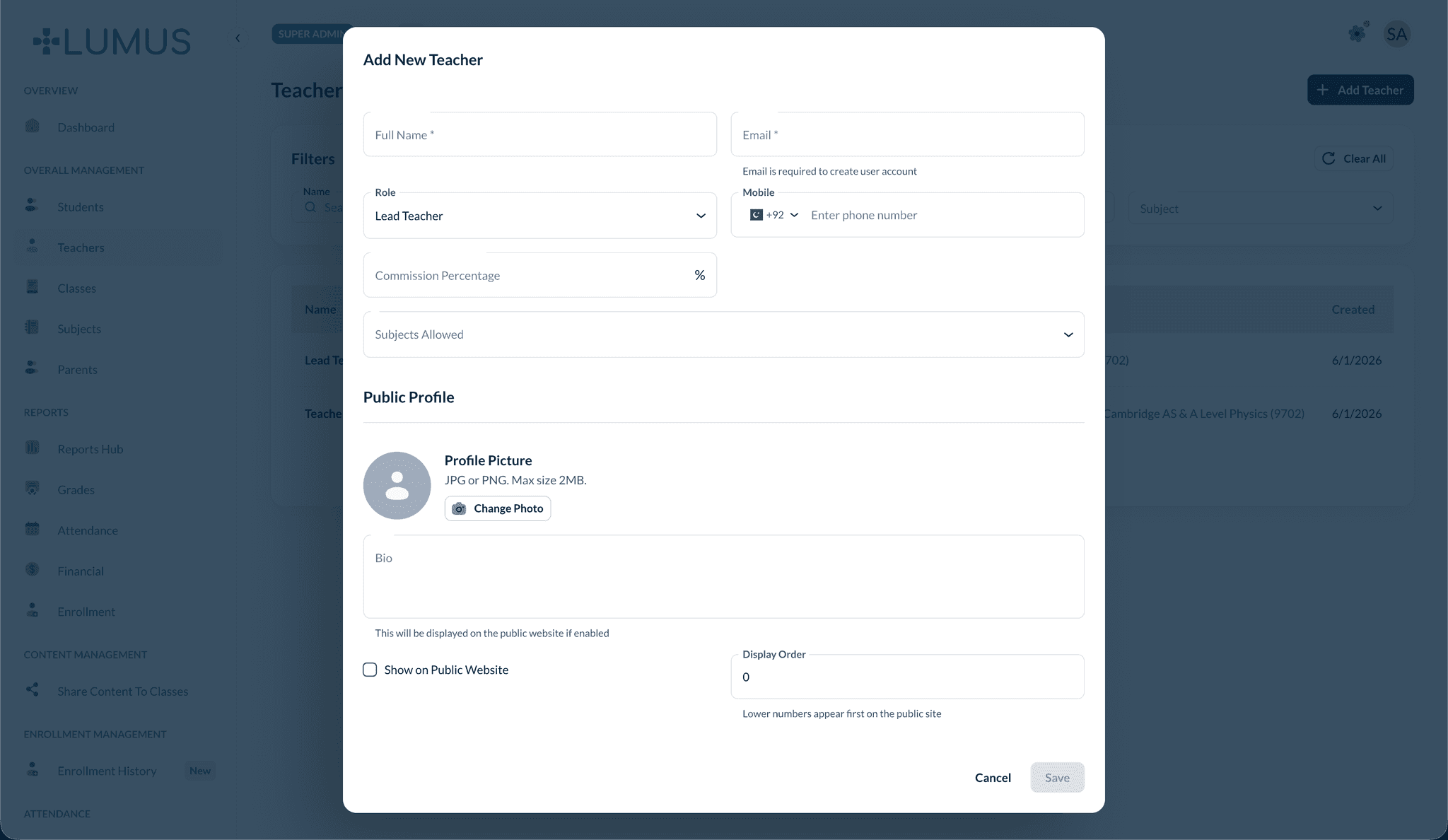
Commission and bank fields are optional for TAs
TAs reuse the teacher profile, so commission and payout fields exist but are unused by default. A TA does not earn commission unless you choose to set it.
Assigning TAs to classes
A TA only gains access once you assign them to a class.
- Open the class and go to Edit Class.
- In the Teaching Assistants field, select one or more TAs (a multi-select of staff with the TA role).
- Save.
- A class can have many TAs.
- A person can be a TA on some classes and a lead teacher on others — both at once.
- Assigning/removing TAs is admin-only.
What a TA can and can't do
| Capability | Admin / Super Admin | Lead Teacher | Teaching Assistant |
|---|---|---|---|
| View & edit class content, modules, schedule | All classes | Own classes | Assigned classes |
| Create / edit / delete assignments | All | Own | Assigned |
| Grade submissions (speed grader, feedback) | All | Own | Assigned |
| Post / edit / delete announcements | All | Own | Assigned |
| Mark attendance, view performance | All | Own | Assigned |
| Class files & Zoom links | All | Own | Assigned |
| Enroll a student into a class | All | Own (new) | Assigned (new) |
| Unenroll a student from a class | All | Own (new) | Assigned (new) |
| Generate / approve onboarding links | All | Own | Assigned |
| Toggle admin-granted access | Yes | No | No |
| Create / edit invoices & fee structures | Yes | No | No |
| Create or delete a class | Yes | No | No |
| Assign a lead teacher to a class | Yes | No | No |
| Assign / remove TAs on a class | Yes | No | No |
What a TA sees
A TA's dashboard mirrors a teacher's, scoped to assigned classes — My Classes, My Students, Attendance, Quick Attendance, Face Enrollment, Performance, Assignments, File Manager, and Zoom. Commission/Payment History is omitted by default since TAs don't earn commission.
When a TA opens a class they're assigned to, they get the same management tabs as the lead teacher, including the Manage Enrollments modal and the onboarding link & approval tabs.
Edge cases & good to know
- Removing a TA's assignment revokes their access to that class immediately. Any pending onboarding approvals stay with the class and pass to whoever still has access.
- Soft-deleting a class removes TA access to it automatically.
- Promoting a TA to a lead teacher (or vice versa) is done by changing their role between Lead Teacher and Teaching Assistant — the underlying teacher profile is reused, and existing class assignments persist.
- Teachers list visibility — TAs see a restricted teacher list (the lead teachers of classes they share), not the full staff directory.
- Public site — TAs are hidden from the public teacher list by default; an admin can opt them in if desired.
Related Topics
- Teacher Management - Create and manage staff accounts
- Student Onboarding Links - Batch self-registration TAs can approve
- Enrollment Management - Roster management details
- Class Management - Set up and edit classes