
Assignment Management
Create and manage assignments within a class
Assignment Management
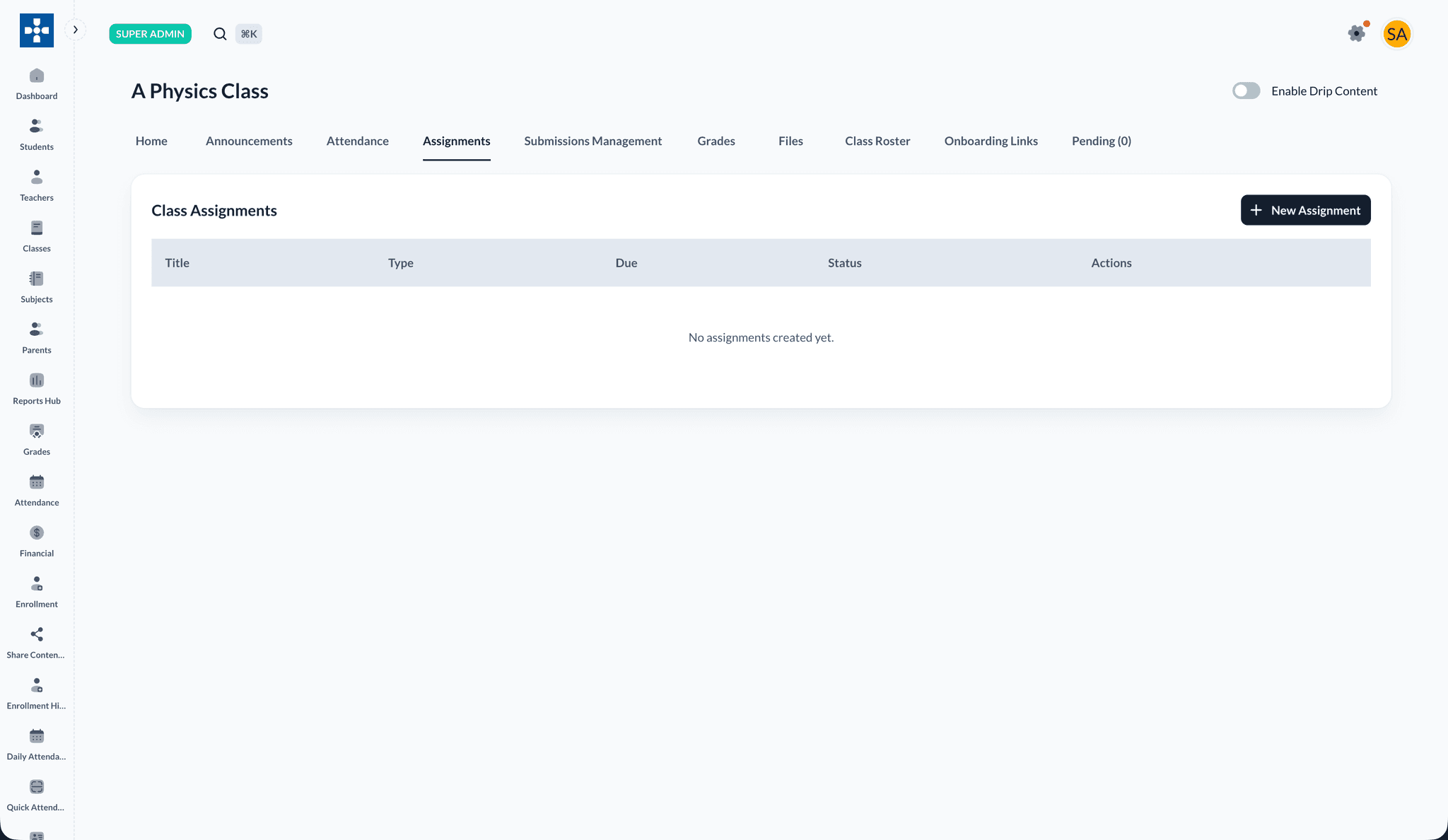
Assignments are managed inside each class, not from a separate system-wide screen. Open a class from Classes, go to the Assignments tab, and create, edit, or review assignments for that roster.
Overview
From the class Assignments tab you can:
- Create assignments, quizzes, exams, and projects
- Set due dates, max scores, and marking criteria
- Attach files for students to download
- Control visibility with draft, published, and closed status
- Lock published assignments until you manually unlock them (manual drip)
- View submissions and edit existing assignments
Creating an assignment
- Open the class and go to Assignments
- Click + New Assignment
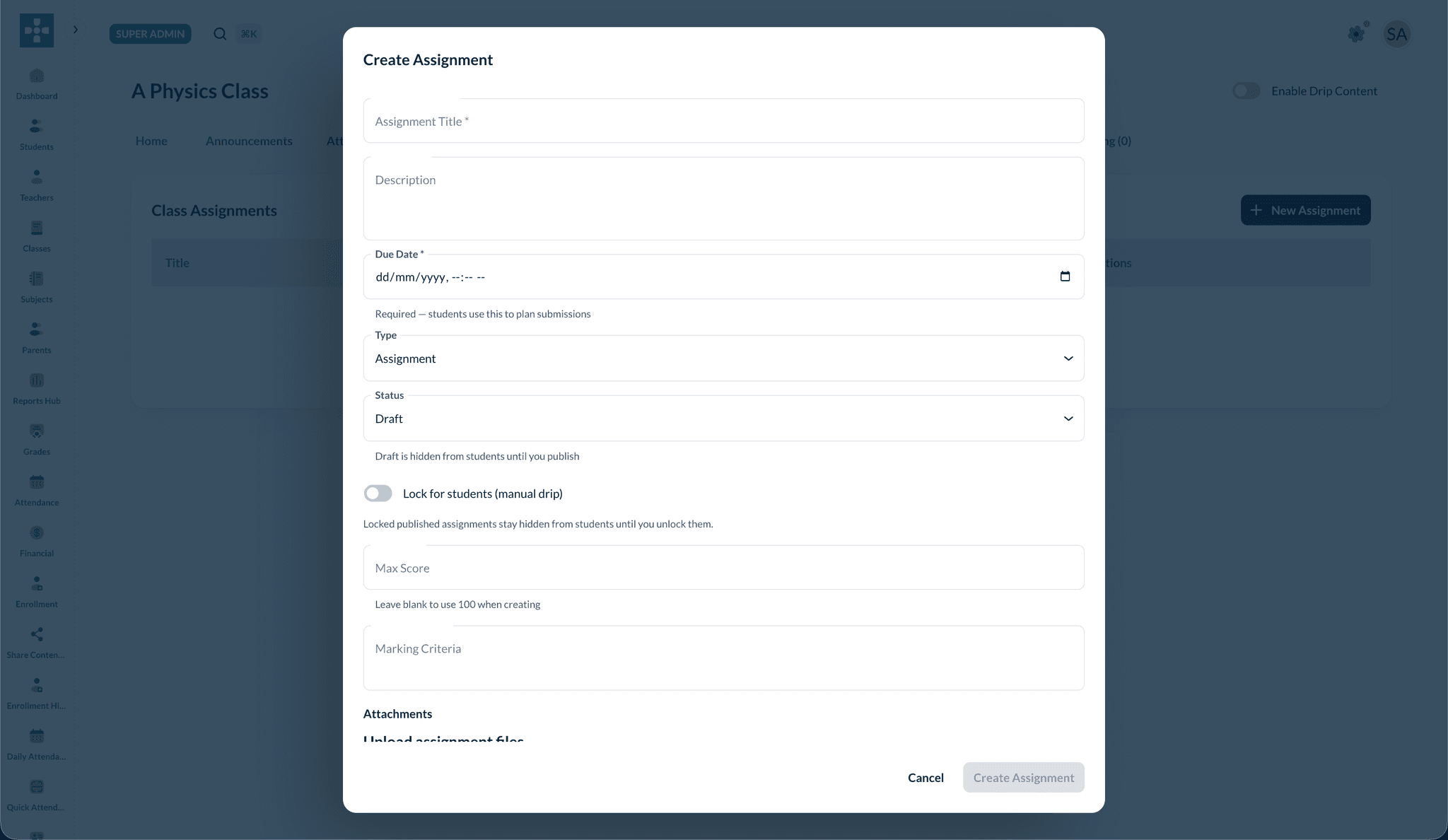
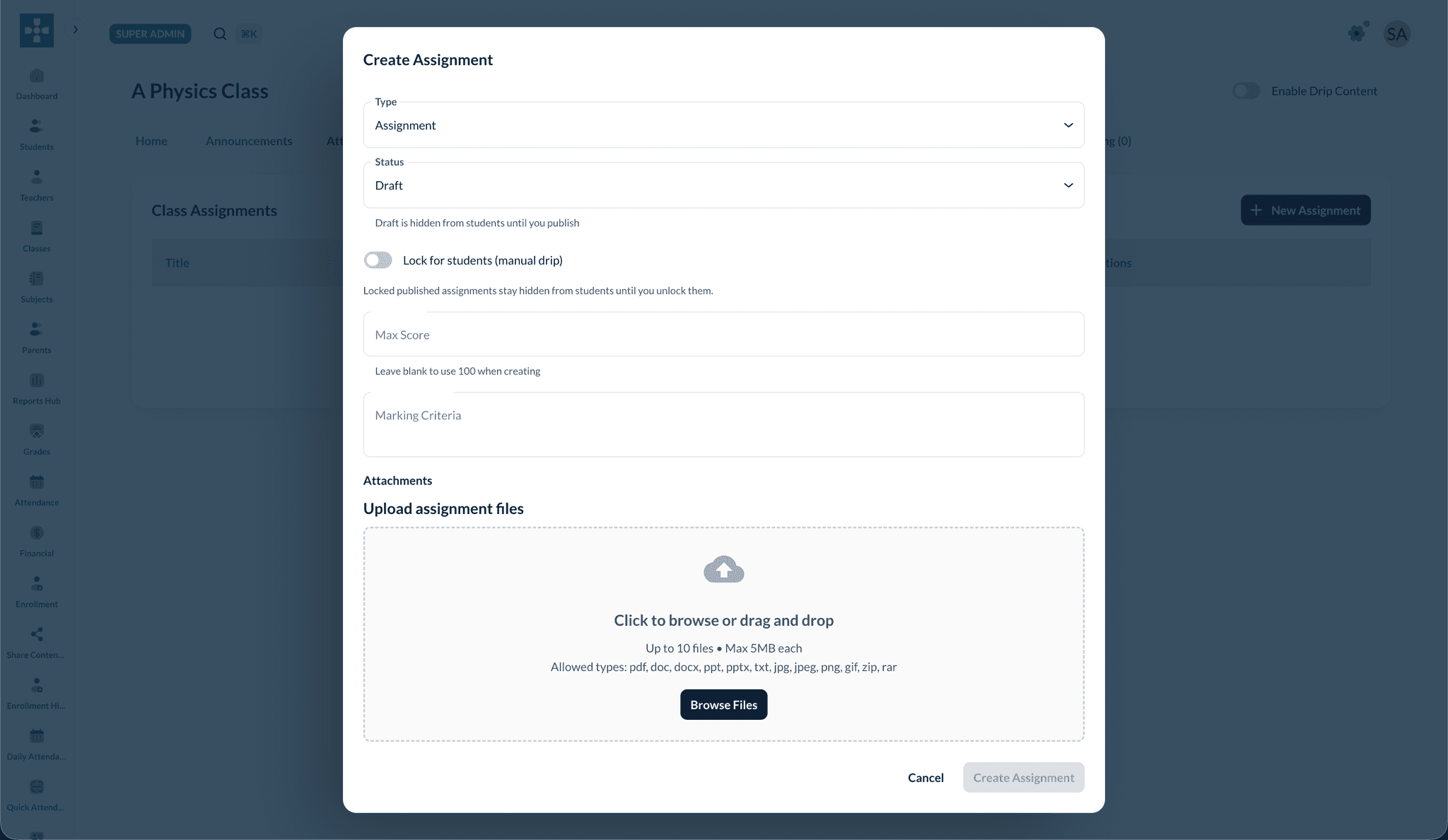
- Fill in the form:
- Assignment Title (required)
- Description
- Due Date (required — students use this to plan submissions)
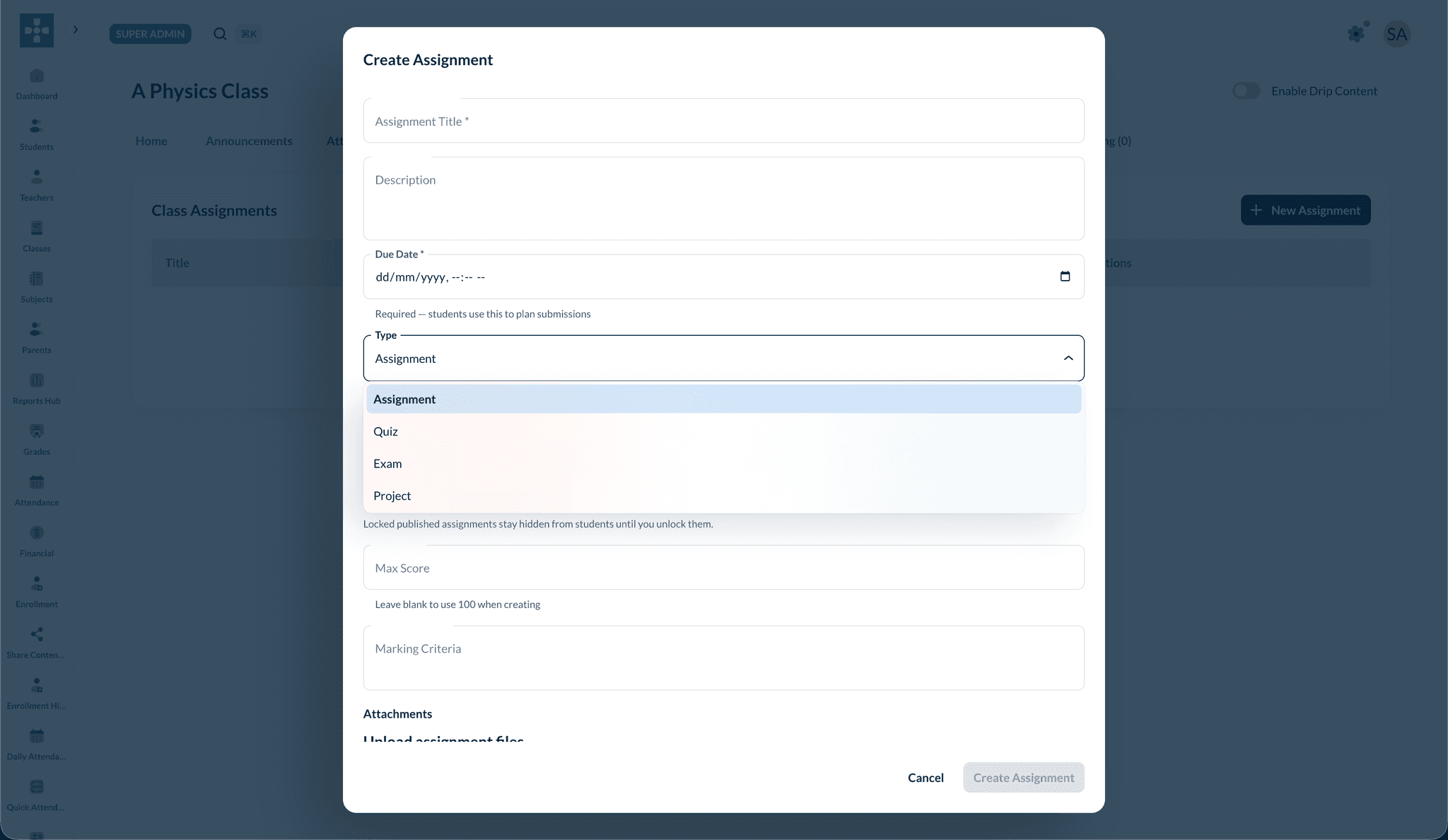
- Type — Assignment, Quiz, Exam, or Project
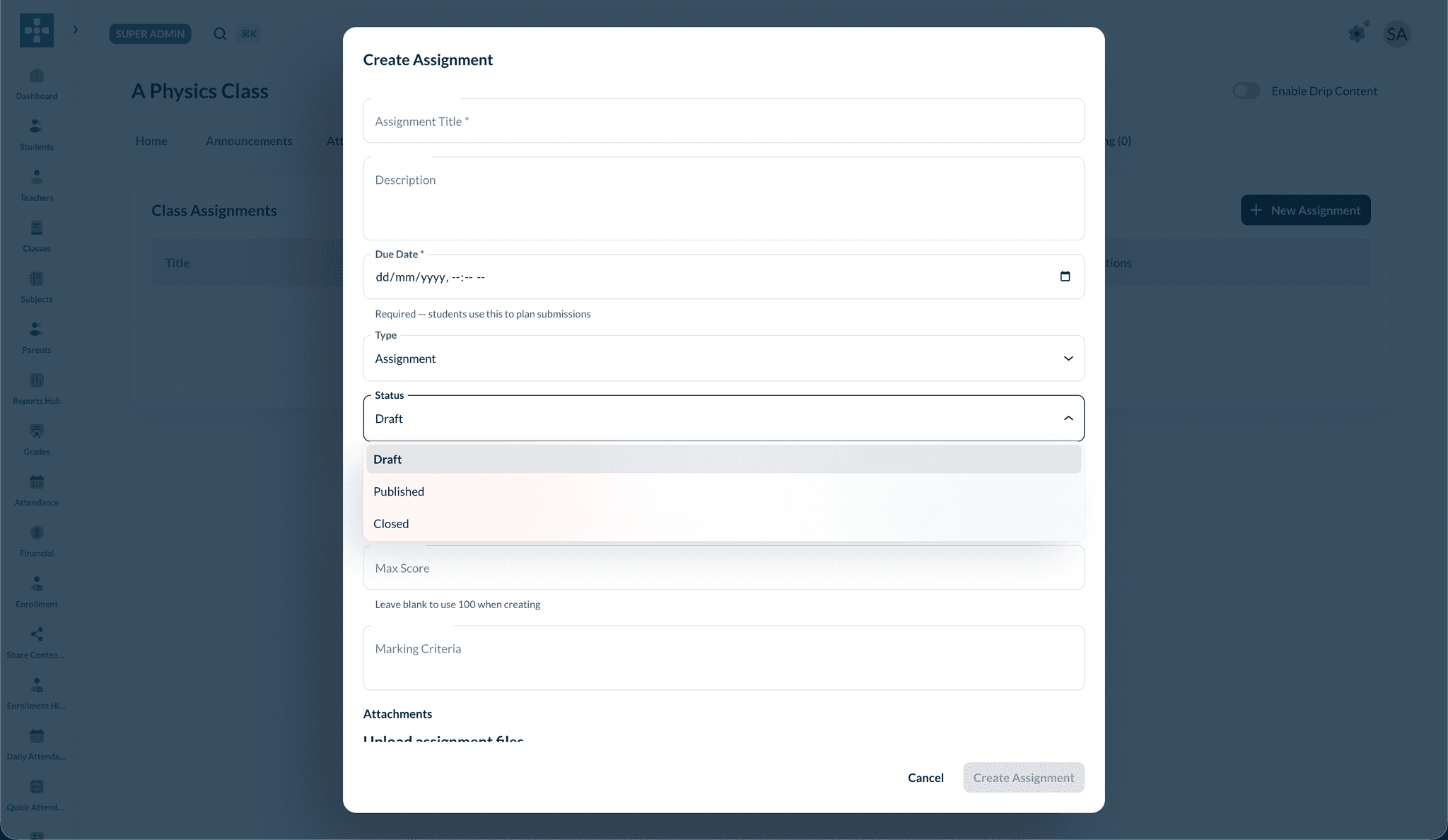
- Status — Draft (hidden from students), Published, or Closed
- Lock for students (manual drip) — keep a published assignment hidden until you unlock it
- Max Score — leave blank to default to 100
- Marking Criteria
- Attachments — upload up to 10 files (max 5 MB each)
- Click Create Assignment
Assignment type
Choose the assessment type from the Type dropdown:
Status and visibility
- Draft — hidden from students until you publish
- Published — visible to enrolled students (unless locked for manual drip)
- Closed — no longer accepting submissions
Use Lock for students (manual drip) on a published assignment to hide it until you turn the lock off.
Viewing and editing assignments
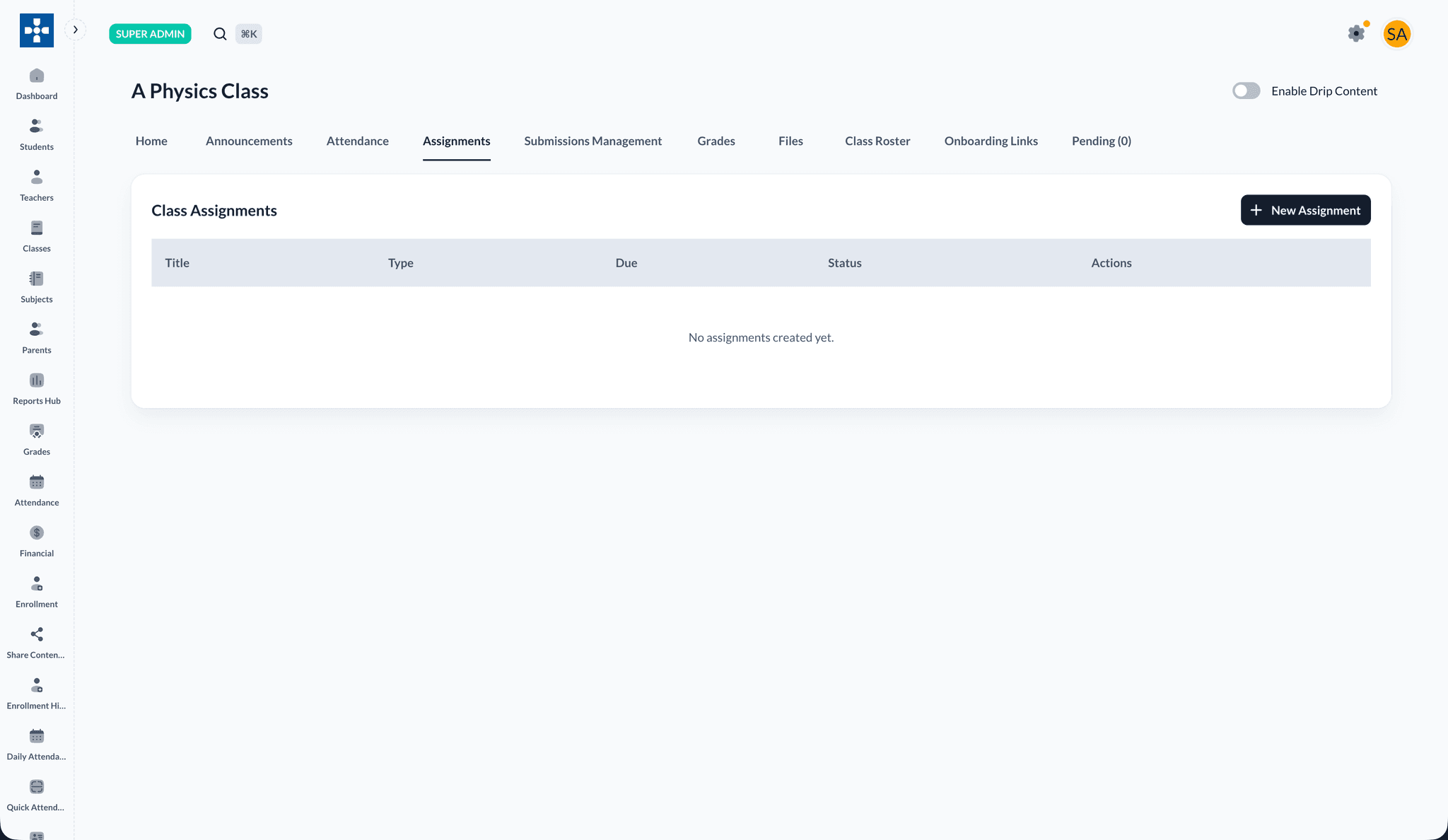
The Assignments tab lists every assignment with its title, type, due date, status, and actions.
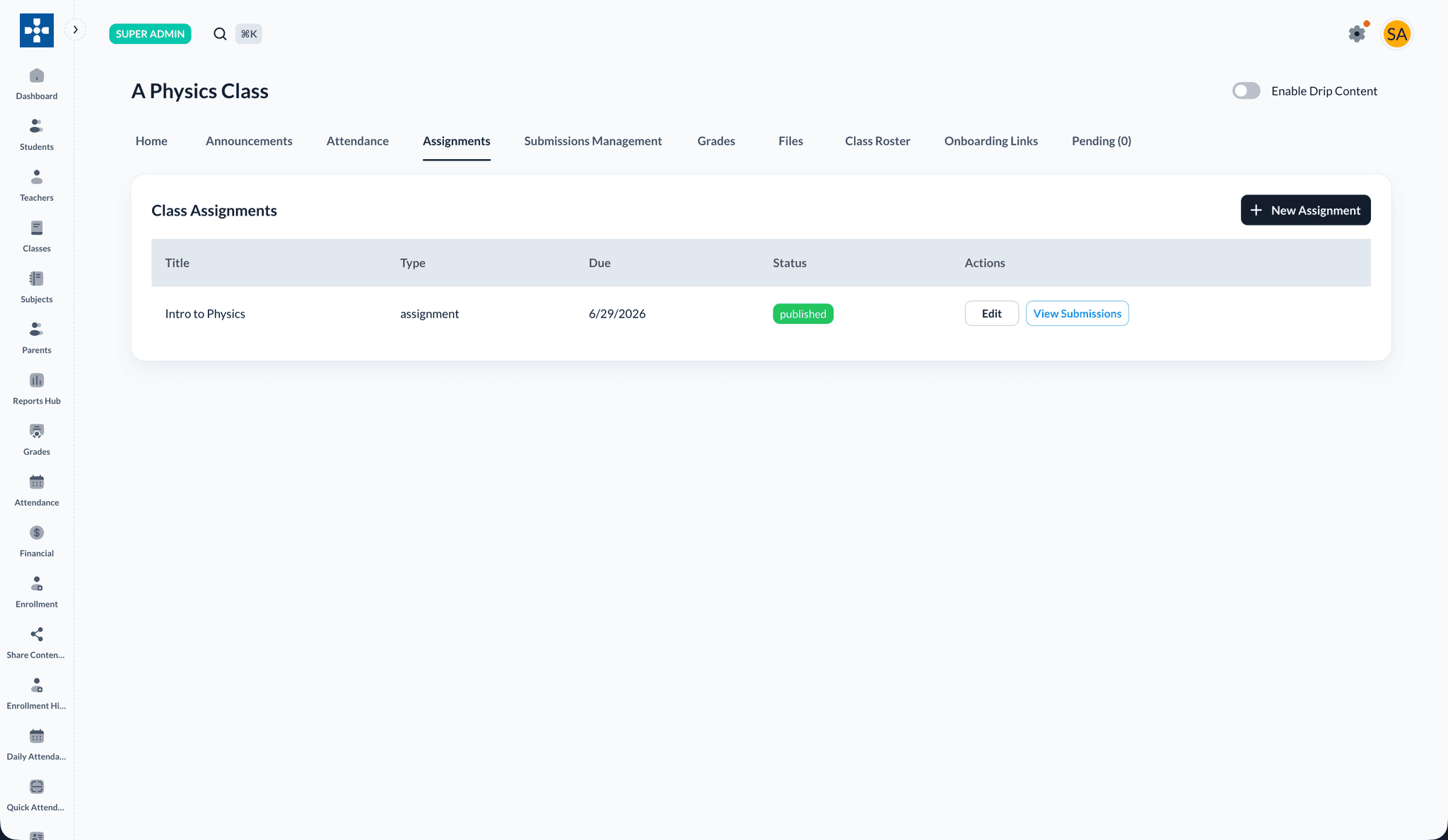
- Click Edit to change title, due date, status, max score, marking criteria, or attachments
- Click View Submissions to open Submissions Management for that assignment
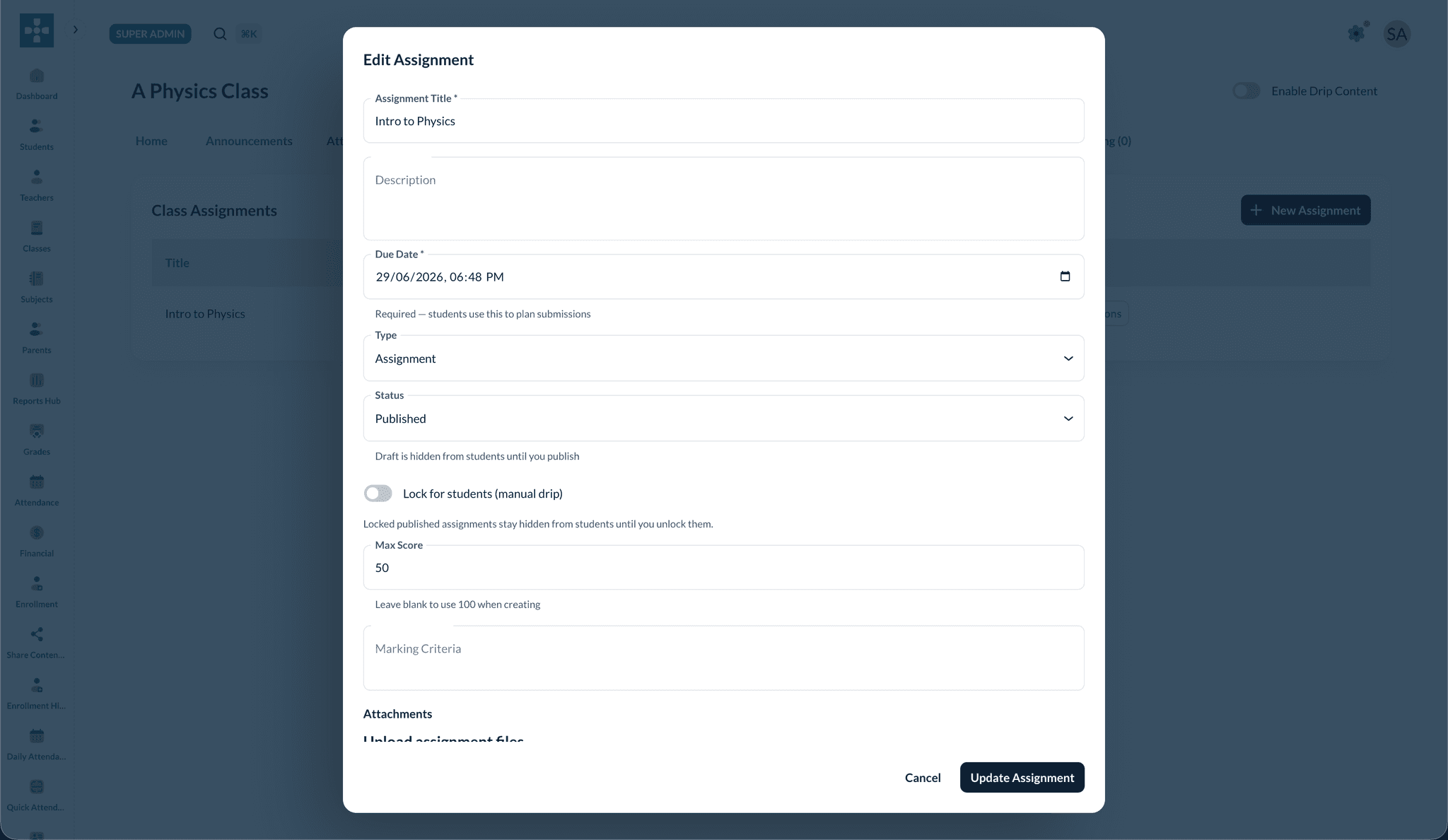
Draft before you publish
New assignments default to Draft. Publish only when the due date, attachments, and instructions are ready — students cannot see drafts.
Quick assignment from Course Home
You can also create an assignment from the class Home tab using Quick assignment on any section header, without leaving the course content view.
Submissions and grading
After students submit work, use the class Submissions Management and Grades tabs to review submissions and enter grades. Teachers and teaching assistants with access to the class follow the same tabs.
Best Practices
Troubleshooting
Issue: Students cannot see an assignment
- Solution: Confirm status is Published, the due date has not passed if closed, and Lock for students is off
Issue: Cannot upload attachments
- Solution: Check file size (max 5 MB each) and supported types: pdf, doc, docx, ppt, pptx, txt, jpg, jpeg, png, gif, zip, rar
Issue: Assignment not appearing in the list
- Solution: Refresh the Assignments tab and confirm you are viewing the correct class
Related Topics
- Class Management — Course Home, roster, and class tabs
- Teacher Management — Staff who create and grade assignments
- Reports & Analytics — Grade and enrollment reports