
Student Onboarding Links
Generate self-registration links for offline-paid students and approve them into a class
Student Onboarding Links
Onboarding links let you bring a batch of students onto the platform without keying in each one by hand. You generate one link per class (or cohort), share it with your students, and they self-register. Each request then lands in a Pending Approvals queue where staff approve or reject it in one click.
This is designed for students who study with a teacher in person and pay their fees offline (cash or bank transfer outside the platform) but still need LMS access to content, assignments, attendance, recordings, and announcements.
Who can use this
Onboarding links live on the class detail page, and are available to anyone with staff access to that class:
- Admins / Super Admins — on any class.
- Lead teachers — on classes they teach.
- Teaching Assistants — on classes they're assigned to (see Teaching Assistants).
No special permission is needed beyond access to the class itself.
How it works (at a glance)
- A staff member creates an onboarding link for a class.
- The link is shared with students (copy/paste, message, email).
- A student opens the link and self-registers (name, email, phone, password, optional date of birth and parent details).
- The request appears in the class's Pending Approvals queue. The student can log in immediately, but the class shows as "Pending teacher approval" until reviewed.
- Staff approve (student gets full access; a paid invoice is recorded for the offline payment) or reject (the request is removed, with an optional reason).
Approval is the security gate
Even if a link is shared more widely than intended, no one gets access until a staff member explicitly approves their request. The link alone never grants access.
Creating an onboarding link
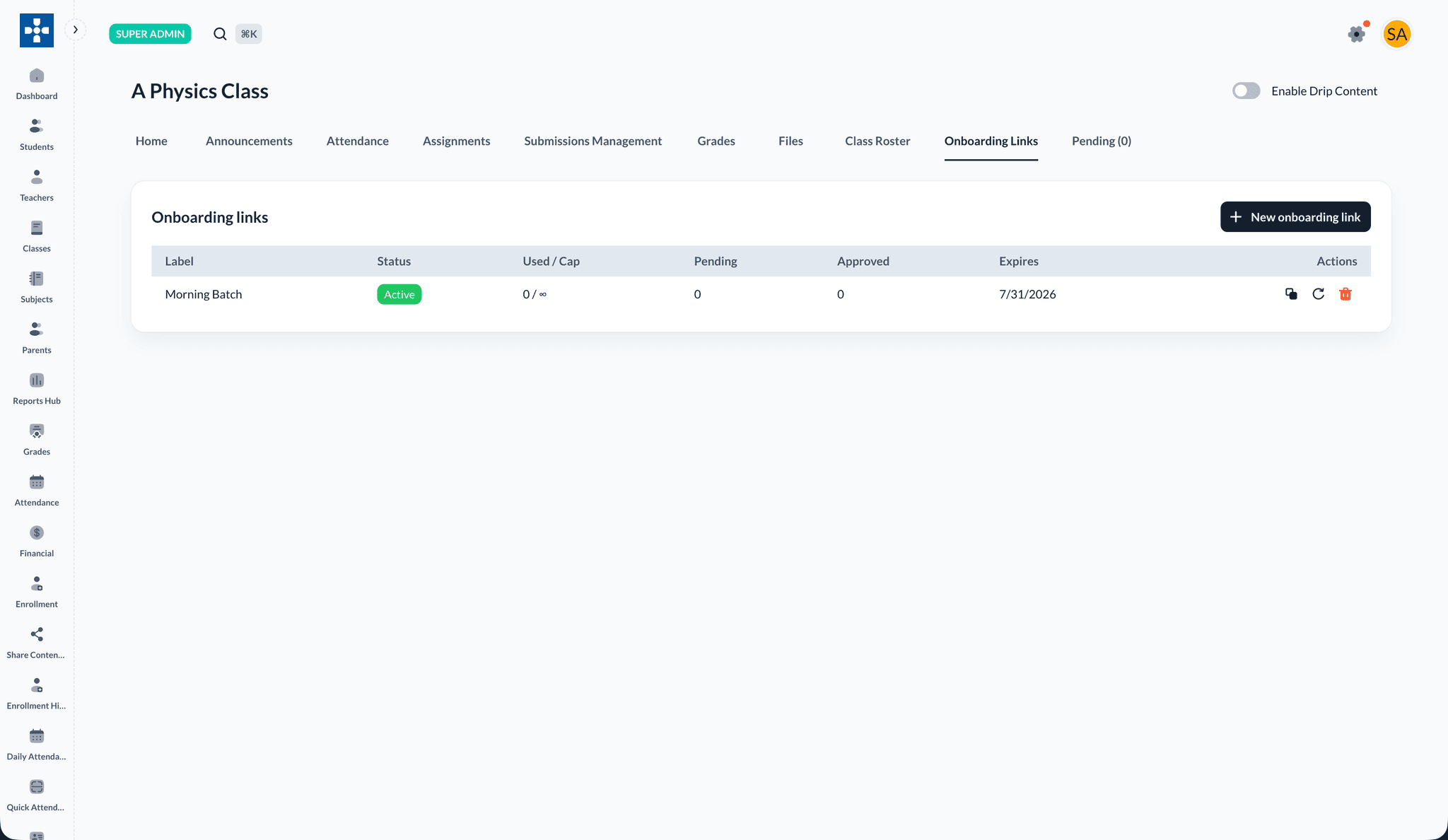
- Open the class and go to the Onboarding Links tab.
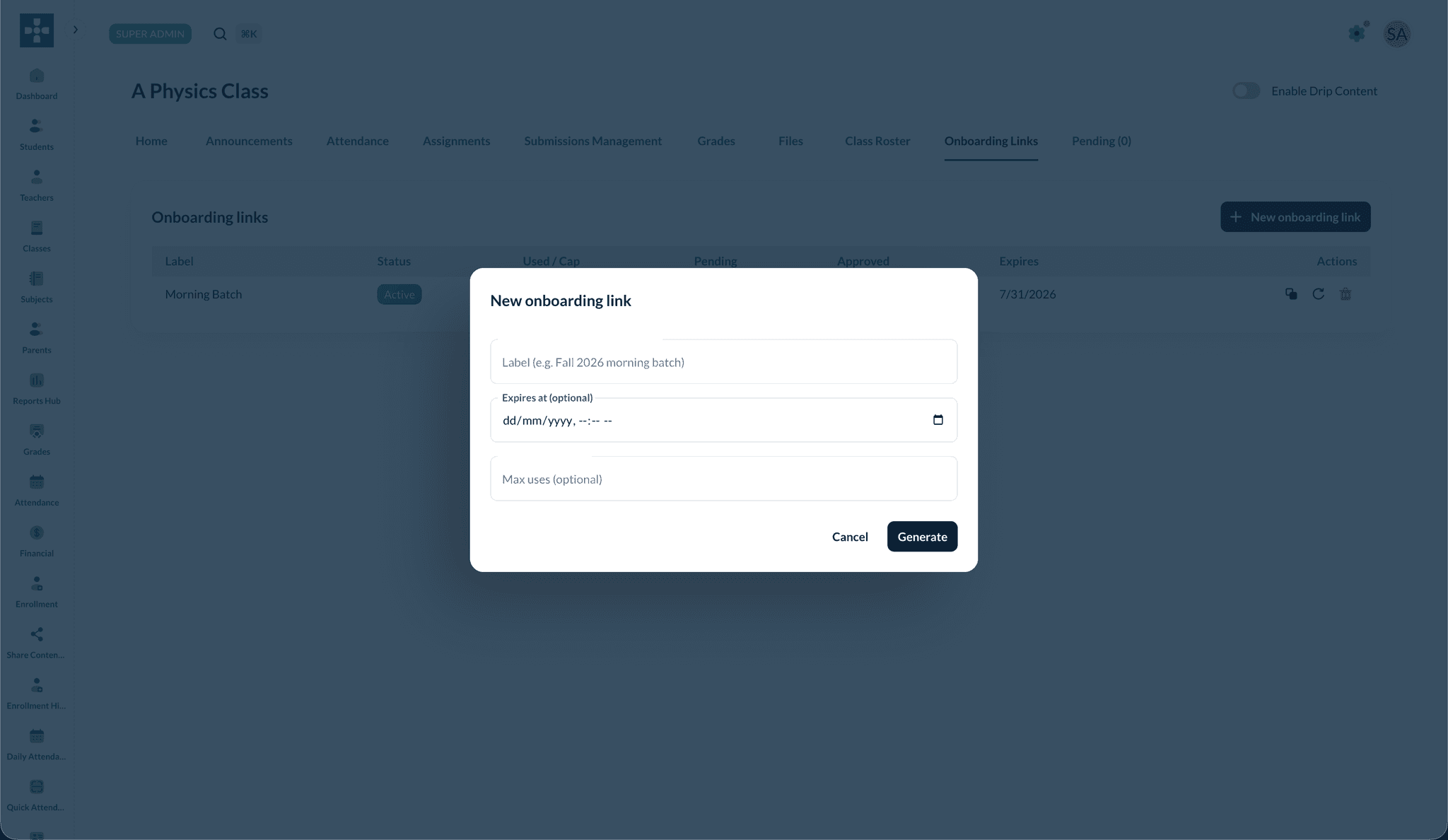
- Click + New onboarding link.
- Fill in the optional settings:
- Label — a human-friendly name, e.g. "Fall 2026 — Morning Batch".
- Expires at — an optional date and time after which the link stops working.
- Max uses — an optional cap on how many students can sign up through it.
- Click Generate. Copy the join URL from the list and share it with your students.
A class can have multiple active links at once — for example, one per cohort within the same class.
Managing existing links
The Onboarding Links tab lists every link for the class with:
- Label
- Status — Active, Expired, or Revoked
- Used / Cap — how many sign-ups have come through versus the limit
- Pending and Approved counts
- Expires — expiry date, if set
- Actions — Copy Link, Regenerate, Delete
Usage counts at sign-up, not approval
The "used" count goes up when a student signs up — not when they're approved. This stops a revolving-door where rejecting old sign-ups frees fresh slots. Rejecting a request does not give back a slot.
Revoking a link stops new sign-ups immediately. Any requests already in the queue stay there and can still be approved. Regenerate revokes the current link and issues a new one with the same settings (useful if a link leaked).
What the student sees
When a student opens the link they see a simple sign-up page with the class name and teacher. They enter:
- Name, email, phone
- Password
- Optional date of birth
- Optional parent name / email / phone
After submitting, they see a confirmation ("Your request has been sent — you'll get an email once it's approved"), are logged in automatically, and land on their dashboard where the new class shows a "Pending teacher approval" badge.
If the link is no longer valid (expired, capped, or revoked), the student sees a clear "link no longer valid" page with a prompt to contact the teacher.
"You already have an account"
If a student signs up with an email that already has a Lumus account, no duplicate account is created. Instead they're asked to log in to claim their spot, and a confirmation email with the same claim link is sent to that address. Once they log in and confirm, the request is added to their existing student account and enters the same approval queue.
Approving and rejecting requests
- Open the class and go to the Pending Approvals tab.
- Review each request — student name, email, phone, when they submitted, and which link they came through.
Approve
Click Approve. On approval:
- The student's enrollment flips to active and they get full access to the class.
- A paid invoice is automatically recorded at the current class fee, marked paid via the link's default payment method (cash by default), since the student paid offline.
- The student receives a "you're in" email.
Approving is idempotent — approving an already-approved request does nothing.
Reject
Click Reject and optionally enter a reason. The request is removed from the class, the reason is stored for the audit trail, and the student receives a rejection email including the reason if you provided one. Rejecting does not delete the student's user account — an admin can still add them to a different class later.
History
Switch the queue to Approved or Rejected to review past decisions, including who decided and when.
Edge cases & good to know
- Duplicate sign-ups — if a student submits twice with the same email, the second submission returns the existing pending request (no duplicate, and the usage count isn't re-incremented).
- Fee changes — the invoice created on approval uses the class fee at the time of approval, matching how normal checkout works.
- Pending students aren't "in" the class yet — pending requests are excluded from active roster counts and from content access until approved.
- TA / teacher reassignment — pending requests belong to the class, not a person. Whoever has access to the class can work the queue.
Security & abuse protection
- Each link uses a long, random token — it reveals nothing about the class or its students.
- The public sign-up page is rate-limited to discourage abuse.
- Every approve/reject action is written to the audit log with the staff member's identity and the request involved.
- Claim links for existing accounts are short-lived, email-bound, and rate-limited.
Related Topics
- Teaching Assistants - Who can manage class rosters and approvals
- Enrollment Management - Manual enrollment and status
- Fee Management - Class fees used for the approval invoice
- Invoice & Payment Management - The paid invoice created on approval