
Reports & Analytics
Explore the Reports Hub — grade analytics, attendance, financial, and enrollment reports with charts, exports, and branded PDFs
Reports & Analytics
The Reports Hub is the central place for analytics across Lumus LMS. Instead of one giant report builder, the hub is organised into four focused report dashboards, each with its own filters, charts, data tables, and export options.
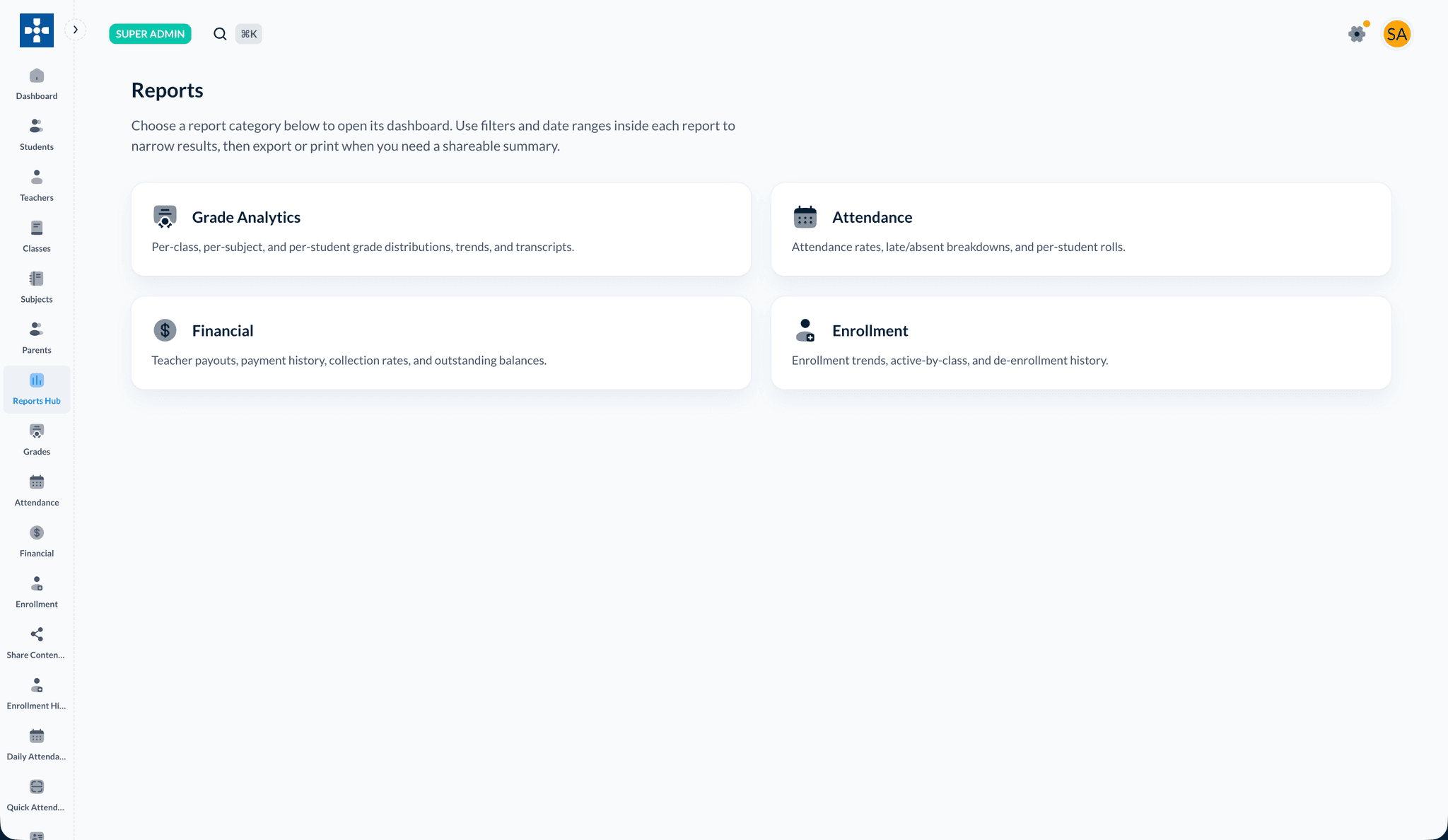
Opening the Reports Hub
- Log in as an administrator (or teacher — see Who can see what).
- Open Reports from the sidebar.
- The hub landing page shows a card for each available report. Click a card to open its dashboard.
Each report opens on its own page. Use the filters and date range inside each report to narrow the results, then export or print when you need a shareable summary.
Grade Analytics
Grade distributions, trends, and transcripts — per class, subject, and student
Attendance
Attendance rates, late/absent breakdowns, and per-student rolls
Financial
Teacher payouts, commissions, collection rates, and outstanding balances (admins only)
Enrollment
Enrollment trends, active-by-class counts, and de-enrollment history
Who can see what
Reports are scoped to what each user is allowed to see:
- Admins / Super Admins see all four reports, across every class.
- Teachers see Grade Analytics, Attendance, and Enrollment — but only for the classes they teach. The Financial report is admin-only and does not appear for teachers.
- Teaching Assistants see reports scoped to the classes they are assigned to.
You never need to manually restrict a report — the data is automatically filtered to the classes you have access to.
Shared controls
Every report dashboard shares the same controls at the top of the page.
Filters bar
Narrow the data with the filters bar:
- Date range — limit the report to a start/end window.
- Class — focus on one or more classes (teachers and TAs only see their own classes here).
Export menu
Use the Export button to download the current view. Available formats:
- PDF — a branded, print-ready summary that uses your academy's logo, name, address, and contact details (configured in Settings & Configuration).
- Excel (.xlsx) — full row-level data for spreadsheet analysis.
- CSV — raw row data for importing into other systems.
Filters apply to exports
Exports respect the filters and date range currently set on the report, so what you download matches what you see on screen.
Grade Analytics
Grade Analytics summarises academic performance for the selected classes and date range.
Summary cards
At the top you'll see headline numbers:
- Average — the average grade percentage across all graded work.
- Graded — how many submissions are graded, with the number still ungraded.
- Pass Rate — the percentage of students at or above the pass threshold, alongside the
configured threshold (set via
gradePassThresholdPercentin Settings & Configuration). - Top student — the highest-performing student and their average.
Charts
- Grade Distribution — how grades spread across letter bands (A, B, C, …).
- Trend — average grade over time (monthly).
- By Subject — average performance per subject.
- By Class — average performance per class.
- By Type — performance split by assessment type (e.g. quiz, assignment, exam).
Student lookup & transcript
Use the student lookup to drill into a single student's grades. From there you can open a per-student grade detail view and generate a branded student transcript PDF.
Grades table
Below the charts, a paginated table lists per-student rows (sorted by average). Export the full table via the Export menu (CSV/Excel) or generate the summary PDF.
Attendance
The Attendance report shows attendance health for the selected classes and dates.
- Summary cards — overall attendance rate, plus present / late / absent breakdowns.
- Trend chart — attendance rate over time.
- By-class chart — compare attendance across classes.
- Attendance rows table — per-student attendance, paginated and exportable.
Export to PDF for a branded summary, or CSV/Excel for the detailed roll.
Financial
Admins only
The Financial report is visible to Admins and Super Admins only.
The Financial report consolidates money-related analytics into tabs:
- Teacher Payouts — pick a month/year and Compute Payouts to calculate each
teacher's revenue and commission-based payout for that period. Open a teacher's row to see
the per-transaction breakdown and the exact
payout = revenue × (commission % ÷ 100)computation. Export payouts to CSV. - Commission Tracking — per-teacher commission rate, payout method, and bank details.
- Financial Reports — revenue by class and a payment-status overview (paid / pending / overdue counts).
- Discount Analytics — analysis of discounts applied.
- Analytics — collection-rate and outstanding-balance analytics, plus outstanding-by-parent breakdowns.
For invoice-level reconciliation (marking invoices paid, reviewing bank-transfer proof, and the full transaction log), see Invoice & Payment Management.
Enrollment
The Enrollment report tracks how your roster changes over time.
- Summary cards — total active enrollments and headline enrollment metrics.
- Active by class — current active enrollment per class.
- De-enrollment history — a paginated table of students who left, exportable to CSV/Excel.
Branded PDFs
Several reports produce branded PDFs rather than plain printouts. These automatically include a header with your academy logo and name, and a footer with contact details, pulled from your platform settings:
- Grades report summary PDF.
- Student transcript PDF (from the Grade Analytics student lookup).
- Attendance report PDF.
- Enrollment report PDF.
- Financial report PDF.
If the logo or contact details look wrong, update them in Settings & Configuration.
Best Practices
Troubleshooting
Issue: A report shows no data
- Solution: Widen the date range or clear the class filter. Teachers/TAs only see their own classes, so confirm you're assigned to the class you expect.
Issue: The Financial report card isn't showing
- Solution: The Financial report is admin-only. Teachers and TAs won't see it.
Issue: The PDF has the wrong logo or contact info
- Solution: Update branding in Settings & Configuration; branded PDFs read from those settings each time they're generated.
Issue: Pass rate looks off
- Solution: Check the grade pass threshold in Settings — the pass rate is calculated against it.
Related Topics
- Invoice & Payment Management - Reconcile payments and review transactions
- Fee Management - Fee structures and invoicing
- Attendance Tracking - How attendance data is captured
- Settings & Configuration - Branding and grade thresholds