
Subject Management
Complete guide to creating and managing subjects
Subject Management
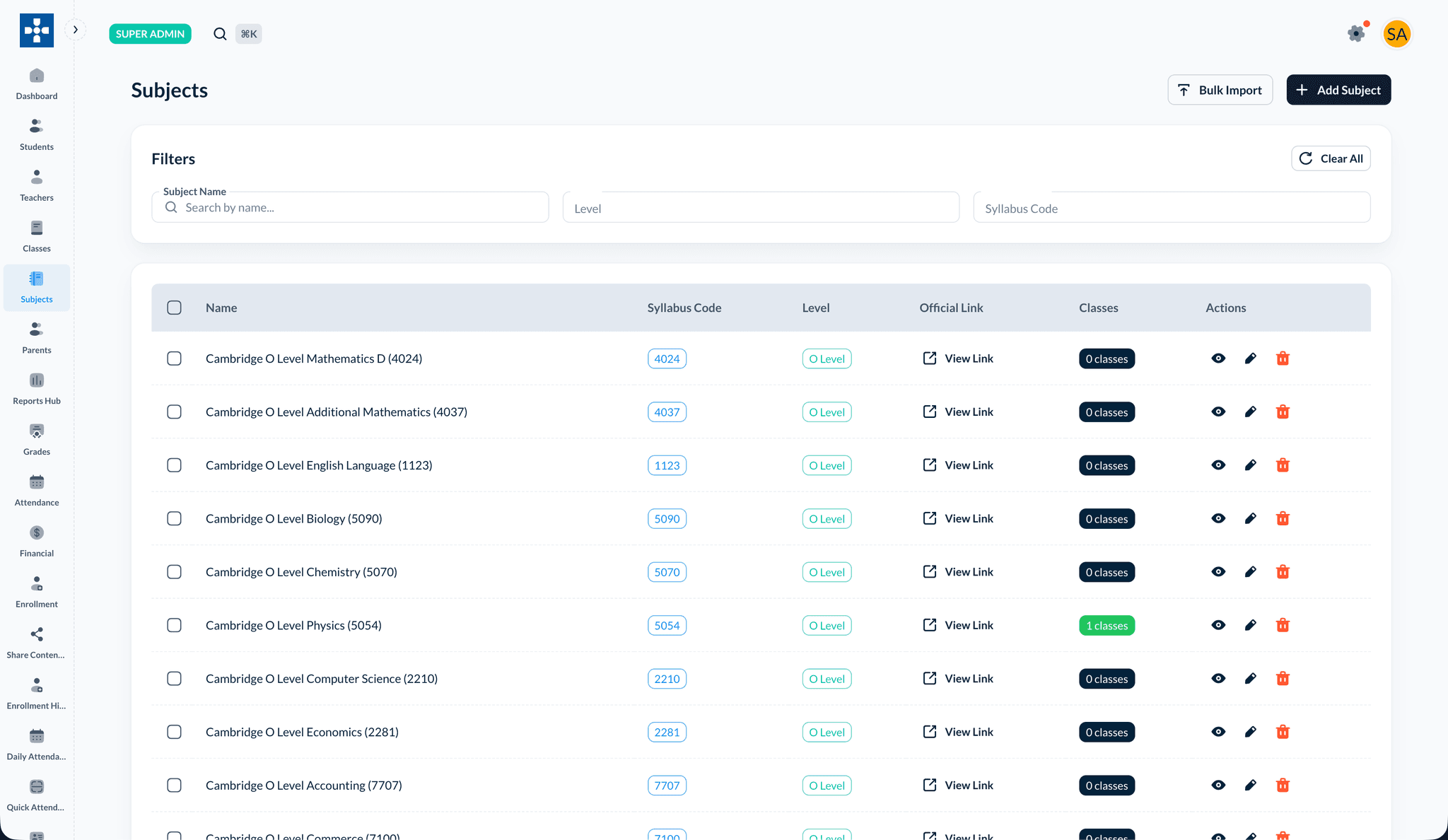
The Subject Management section allows administrators to create, edit, and manage subjects across the institution. Subjects are used to organize classes and assign teachers.
Overview
Subject Management enables you to:
- Create new subjects
- Edit existing subject information
- Assign teachers to subjects
- Organize curriculum by subject
- View subject-related classes and teachers
- Archive or deactivate subjects
Creating a New Subject
Step 1: Navigate to Subject Management
- Log in to the administrator dashboard
- Click on "Subjects" in the navigation menu
- Click the "Create New Subject" button
Step 2: Enter Subject Information
Fill in the required details:
- Subject Name: Name of the subject (e.g., "Mathematics", "English Literature")
- Description: Optional description of the subject content
- Code: Subject code or abbreviation (optional)
- Category: Subject category or department (optional)
Step 3: Save Subject
- Review all entered information
- Click "Create Subject" or "Save"
- The subject will be created and available for class creation
Bulk Import Subjects
- Go to Subjects
- Click Bulk Import
- Download the bulk subjects CSV template and fill in subject details
- Choose whether to skip or update duplicate records
- Upload the file
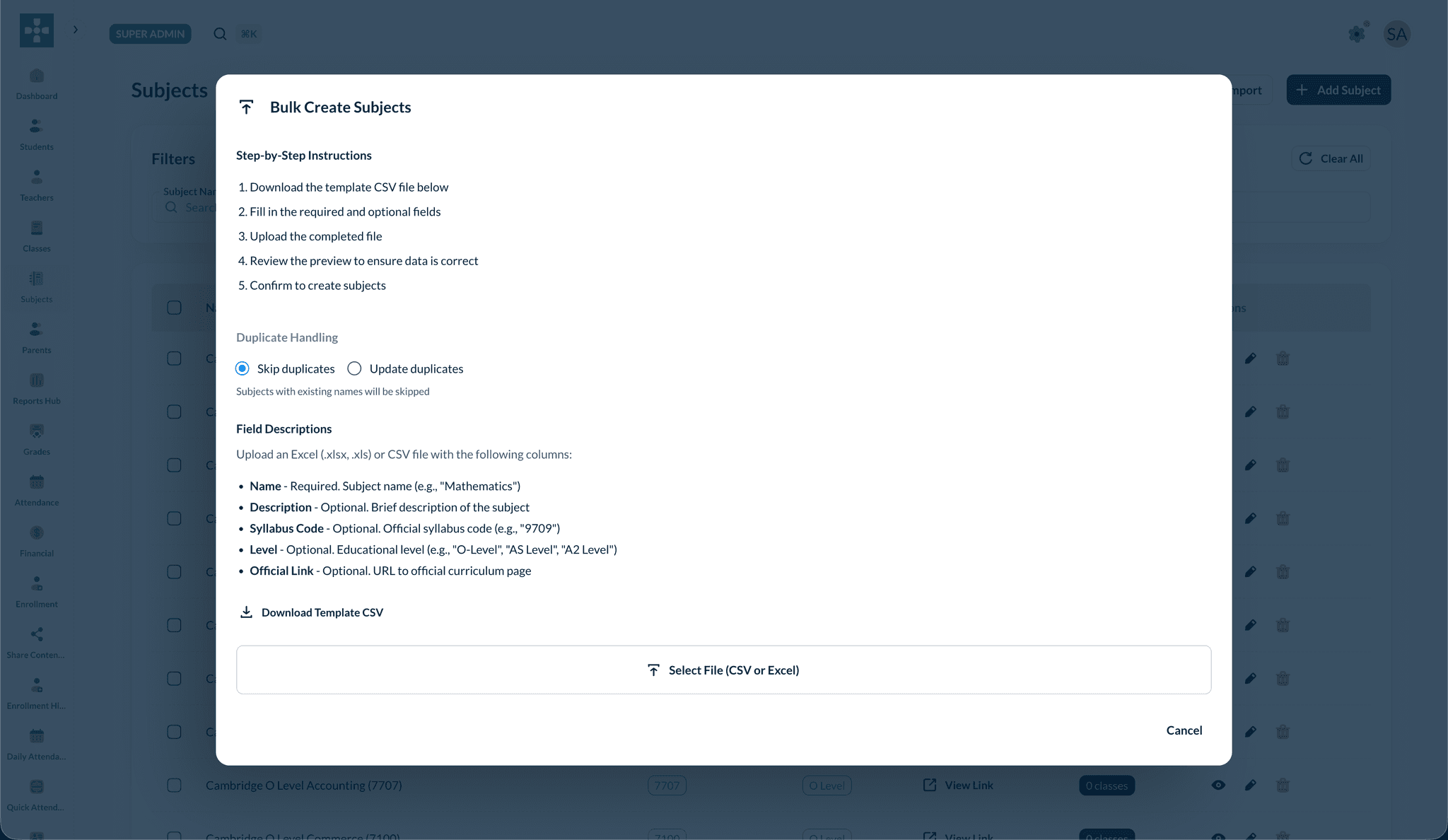 5. Upload the completed CSV or Excel file to create multiple subjects at once
The template includes columns for name, description, syllabus code, level, and official link. You can also download the same template from the Bulk Import dialog in the admin portal.
Subject Organization
Subjects help organize your curriculum and make it easier to assign teachers and create classes. Use clear, descriptive names.
Editing Subject Information
Accessing Subject Details
- Go to Subject Management
- Search for the subject by name
- Click on the subject name or the "Edit" button
Updating Information
You can modify:
- Subject name and description
- Subject code
- Category or department
- Status (active/inactive)
Assigning Teachers to Subjects
Single Teacher Assignment
- Open the subject details
- Navigate to the "Assigned Teachers" section
- Click "Add Teacher"
- Select a teacher from the dropdown
- Click "Assign"
Multiple Teacher Assignment
- Go to subject details
- Select multiple teachers
- Assign them all to the subject
- Teachers can then be assigned to classes for this subject
Removing Teacher Assignments
- Go to assigned teachers section
- Click "Remove" next to a teacher
- Confirm the removal
- Teacher will no longer be available for classes in this subject
Viewing Subject Details
The subject details page displays:
- Basic Information: Name, description, code, category
- Assigned Teachers: All teachers assigned to this subject
- Related Classes: All classes using this subject
- Student Enrollment: Total students enrolled in subject classes
- Statistics: Subject-related statistics and metrics
Managing Subject Status
Activating/Deactivating Subjects
- Open subject details
- Navigate to "Settings"
- Toggle "Active Status"
- Deactivated subjects:
- Cannot be used for new classes
- Existing classes remain active
- Teachers remain assigned
Archiving Subjects
- Go to subject details
- Click "Archive Subject"
- Archived subjects are moved to historical records
- Useful for subjects no longer offered
Searching and Filtering Subjects
Search Functionality
Search subjects by:
- Subject name
- Subject code
- Category or department
- Teacher name (assigned teachers)
Filter Options
Filter subjects by:
- Category: View subjects in a specific category
- Status: Active, Inactive, Archived
- Teacher: Subjects assigned to a specific teacher
Subject Categories
Organizing by Category
Create categories to organize subjects:
- Academic: Core academic subjects
- Elective: Optional subjects
- Extracurricular: Non-academic subjects
- Language: Language courses
Managing Categories
- Go to Subject Management settings
- Create or edit categories
- Assign subjects to categories
- Filter and organize by category
Best Practices
Troubleshooting
Issue: Cannot assign teacher to subject
- Solution: Verify the teacher account exists and is active. Check for any restrictions.
Issue: Subject not appearing in class creation
- Solution: Ensure the subject is active. Check subject status in Subject Management.
Issue: Cannot delete subject
- Solution: Subjects with active classes cannot be deleted. Archive the subject instead or remove all class associations first.
Related Topics
- Teacher Management - Learn about assigning teachers
- Class Management - Understand how subjects are used in classes
- Reports & Analytics - Generate subject-related reports