
Facial recognition & biometric attendance
Administrator responsibilities for consent, audit, and enabling camera-based attendance
Facial recognition & biometric attendance
Your institution may use camera-based face enrollment and Quick Attendance so teachers can mark attendance faster. Administrators own consent and oversight; teachers run day-to-day enrollment and Quick Capture sessions on their classes.
What administrators must do
- Record biometric consent before teachers enroll new students who have no samples yet. In Face Enrollment, select the class and use Record consent for each student (optional note references your paper or digital policy).
- Revoke consent when a family withdraws approval; the product removes face samples and logs the revocation.
- Monitor Biometric Audit Log for consent changes, enrollments, deletions, face matches, and manual overrides — useful for audits and support tickets.
Teachers see consent status but cannot grant or revoke consent in the app.
Biometric Audit Log
Open Biometric Audit Log from the sidebar to review every consent change, face enrollment, sample deletion, and facial recognition match.
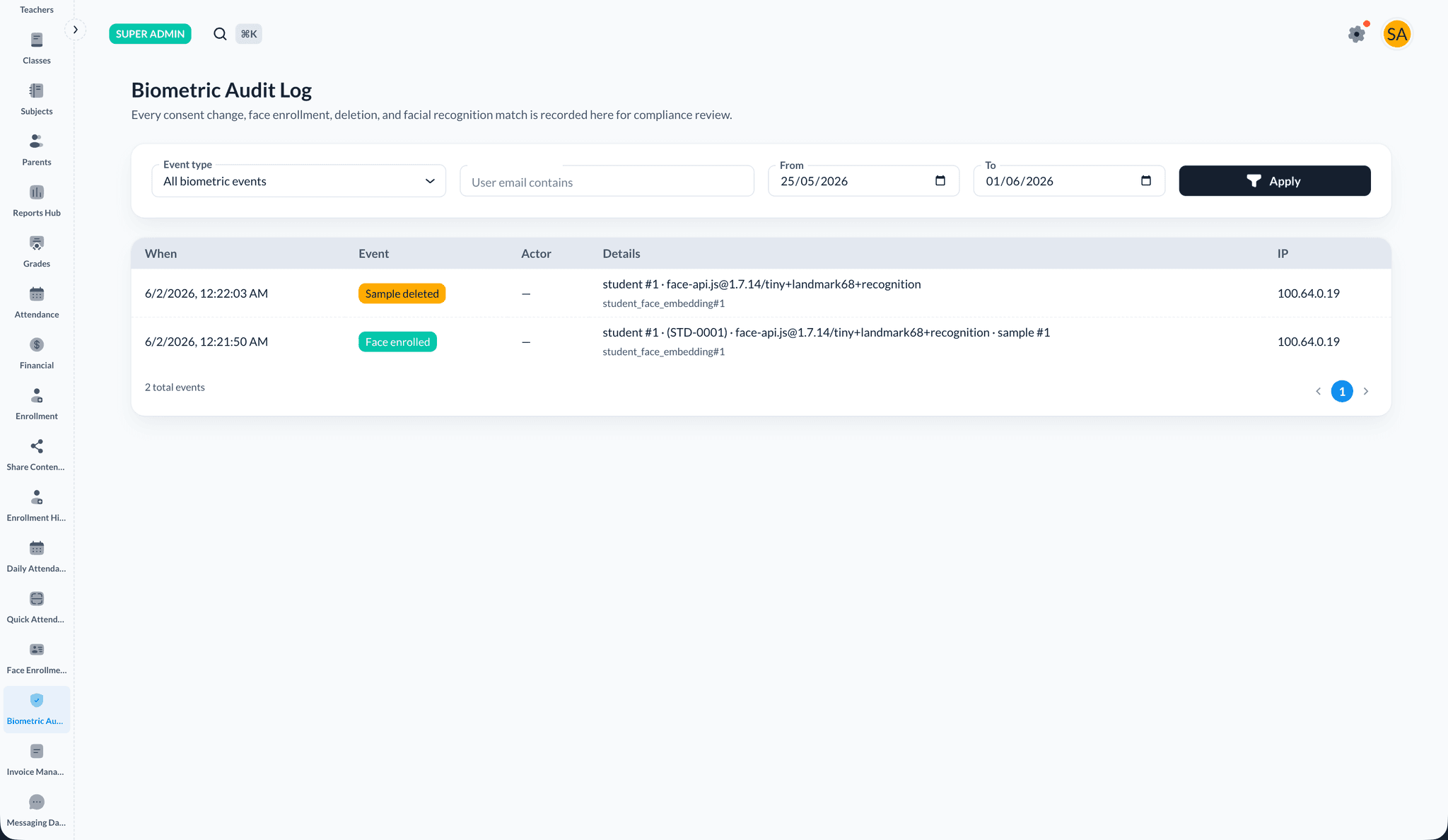
Filter by event type, user email, and date range, then review actor, details, and IP for each row.
Where teachers work
Teachers use Face Enrollment and Quick Attendance on their classes, then save Quick Capture with Finish & Save. Step-by-step instructions with screenshots are in the Facial recognition attendance guide in the Teacher documentation.
Related topics
- Attendance tracking — Reports and daily attendance context