
Teacher Management
Guide to managing teachers and staff in Lumus LMS
Teacher Management
The Teacher Management section allows administrators to add, edit, and manage all teacher accounts in the system. This includes assigning subjects, managing teacher profiles, and controlling access permissions.
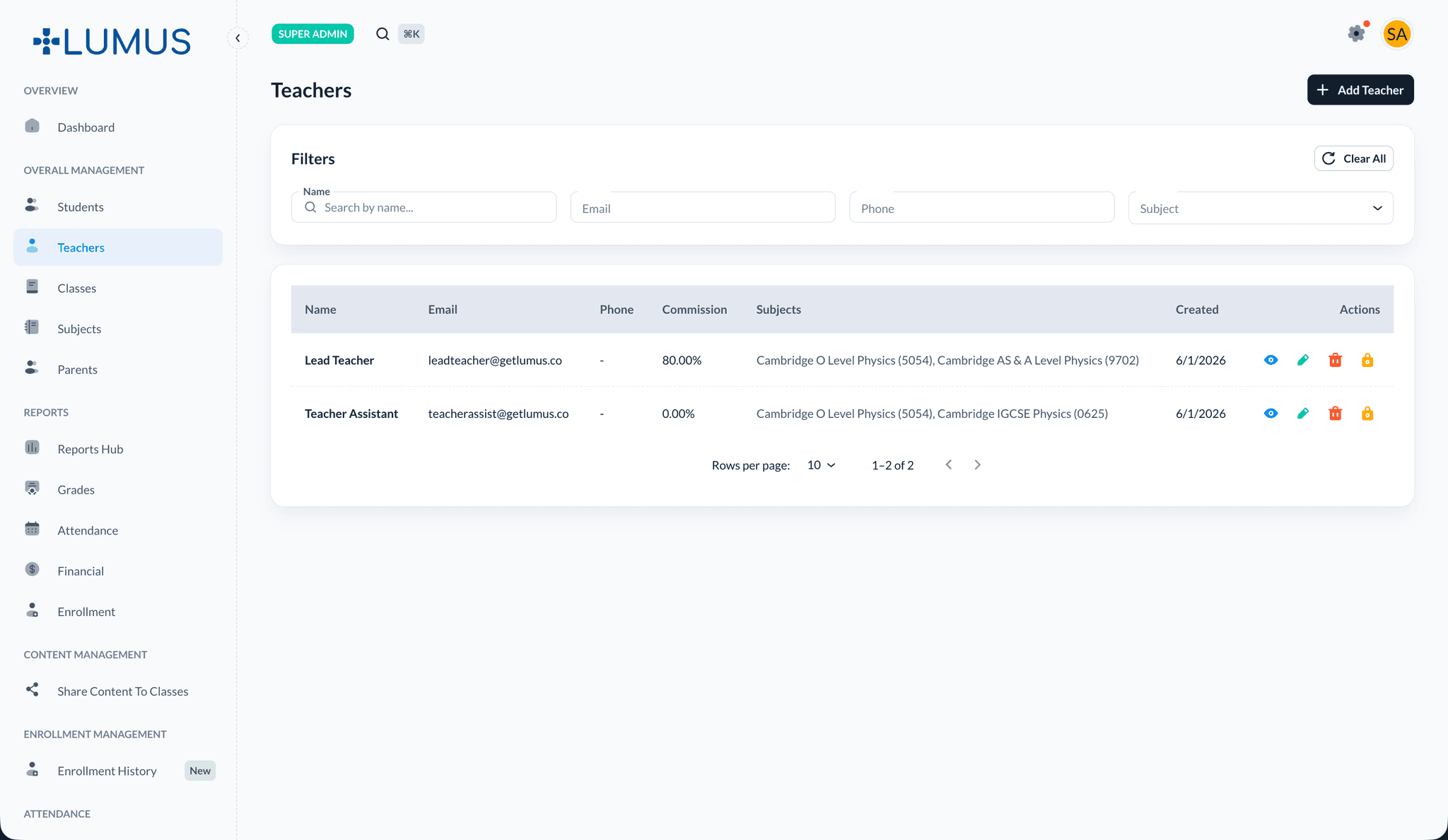
Overview
Teacher Management enables you to:
- Add new teacher accounts
- Edit teacher information and credentials
- Assign subjects to teachers
- Manage teacher access and permissions
- View teacher schedules and class assignments
- Deactivate or remove teacher accounts
Adding a New Teacher
Step 1: Navigate to Teachers
- Log in to the administrator dashboard
- Open Teachers under Overall Management
- Click "+ Add Teacher"
Step 2: Enter Teacher Information
Fill in the required details in the Add New Teacher form:
- Full Name: Teacher's complete name
- Email: Professional email address — required to create the login account
- Role: Choose Lead Teacher or Teaching Assistant
- Mobile: Contact number
- Commission Percentage: Payout rate for the teacher (optional for TAs)
- Subjects Allowed: Select one or more subjects the teacher can teach
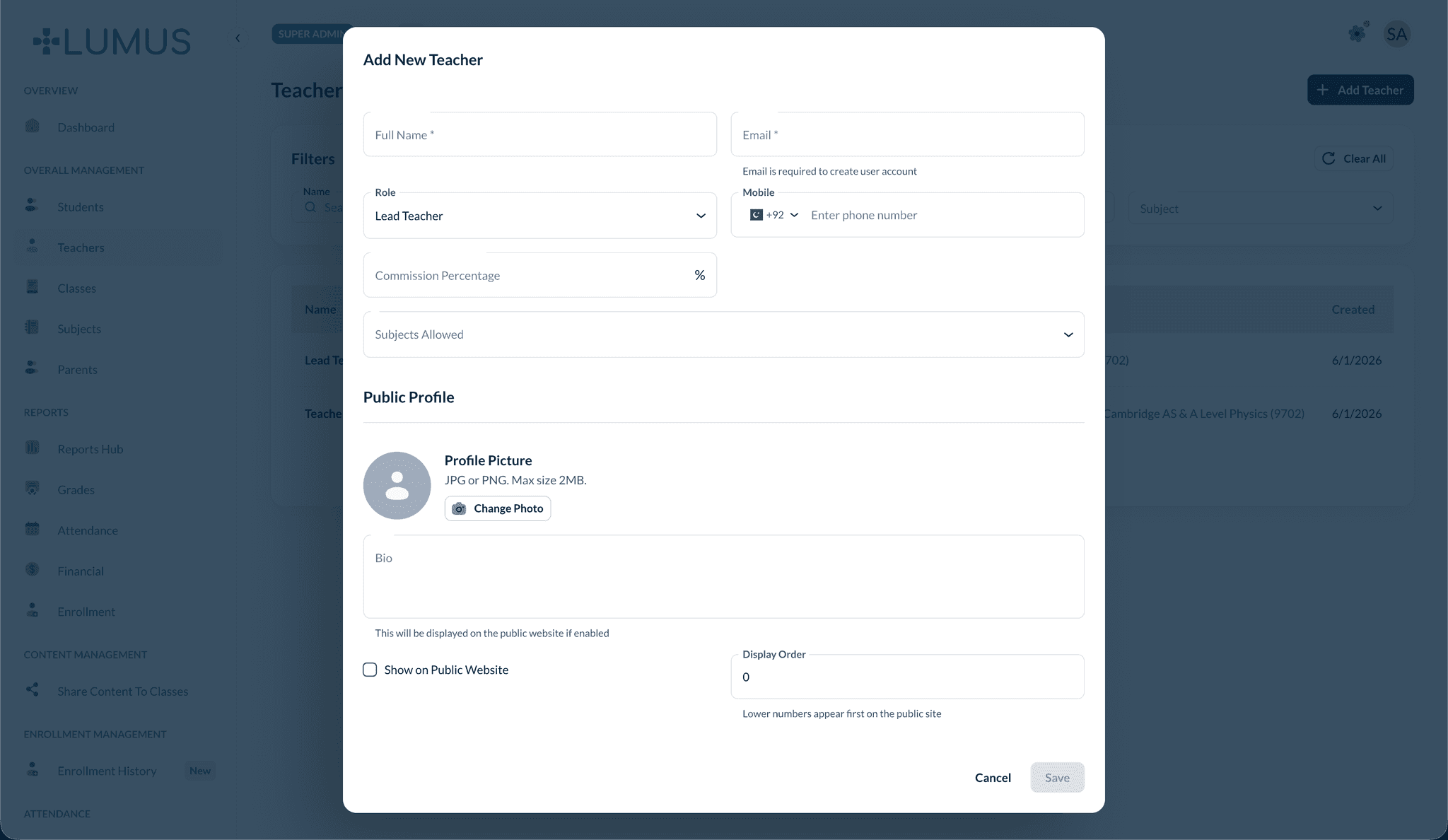
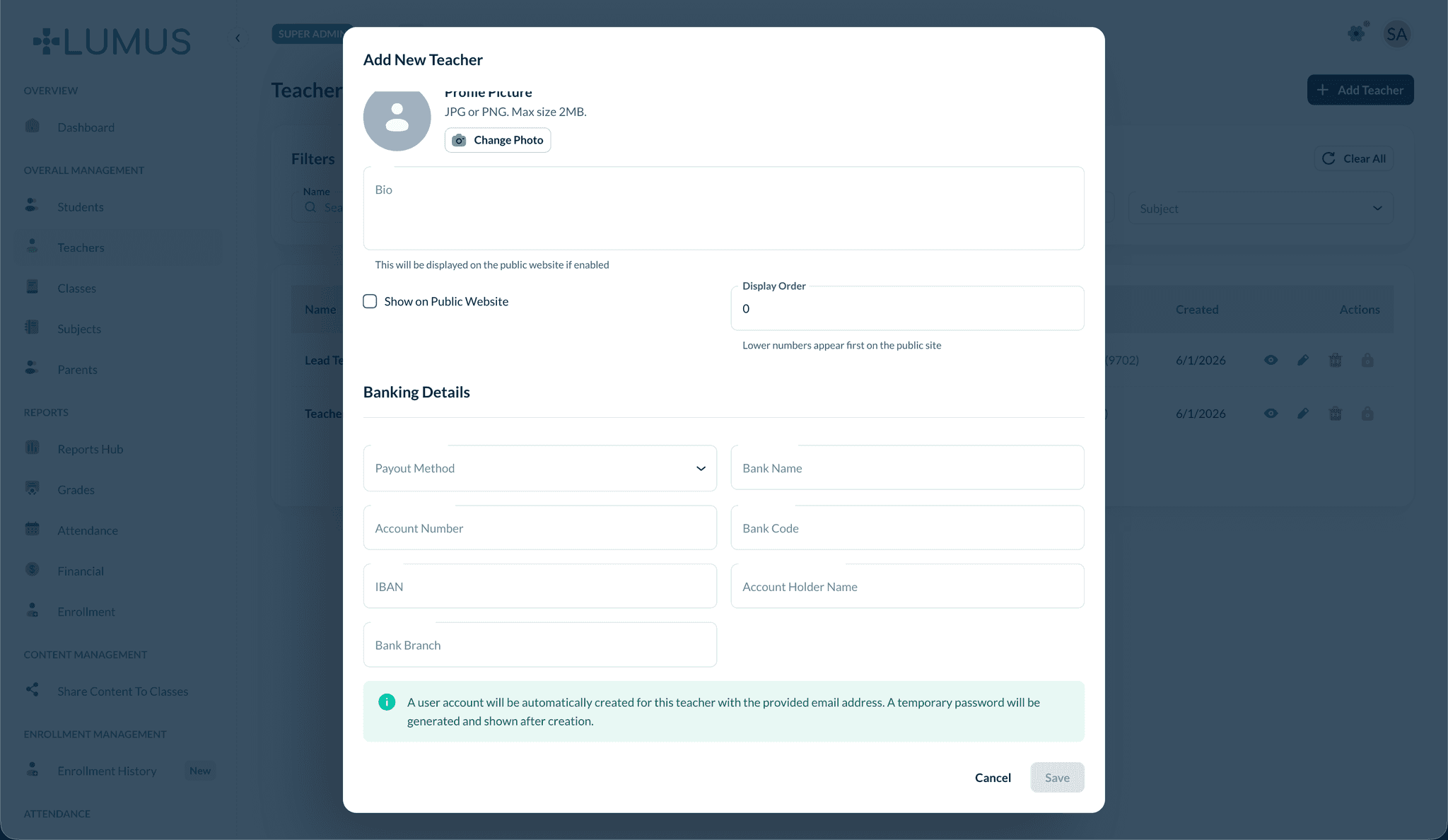
Optionally complete the Public Profile and Banking Details sections:
- Public Profile: Profile photo, bio, public-website visibility, and display order
- Banking Details: Payout method, bank name, account number, IBAN, and related fields
Step 3: Save and Provision the Account
- Review all entered information
- Click Save
- Lumus automatically creates a linked user account using the email address you provided
- A temporary password is generated and displayed after creation — share it with the teacher so they can sign in
Bulk Import Teachers
- Go to Teachers
- Click Bulk Import
- Download the bulk teachers CSV template and fill in teacher details
- Choose whether to skip or update duplicate records
- Upload the completed CSV or Excel file to create multiple teacher accounts at once
The template includes columns for name, email, phone, commission, subject assignments, payout/banking details, and public profile settings. You can also download the same template from the Bulk Import dialog in the admin portal.
Automatic account creation
You do not create a username or set an initial password manually. The platform provisions the account for both Lead Teachers and Teaching Assistants when you save the profile. Encourage staff to change their temporary password after first login.
Editing Teacher Information
Accessing Teacher Profile
- Go to Teachers
- Use the filters to search by name, email, phone, or subject
- Click the Edit icon in the row actions
Updating Information
You can update:
- Personal information (name, email, mobile)
- Role — Lead Teacher or Teaching Assistant
- Subjects Allowed
- Commission and banking details
- Public profile settings
Assigning Subjects to Teachers
Subjects are assigned when you create or edit a teacher using the Subjects Allowed multi-select on the Add New Teacher or edit form.
Subject Assignment Rules
- Teachers can be assigned to multiple subjects
- Subject assignments determine class eligibility
- Changes to subject assignments affect future class assignments only
Managing Teacher Accounts
Account Activation/Deactivation
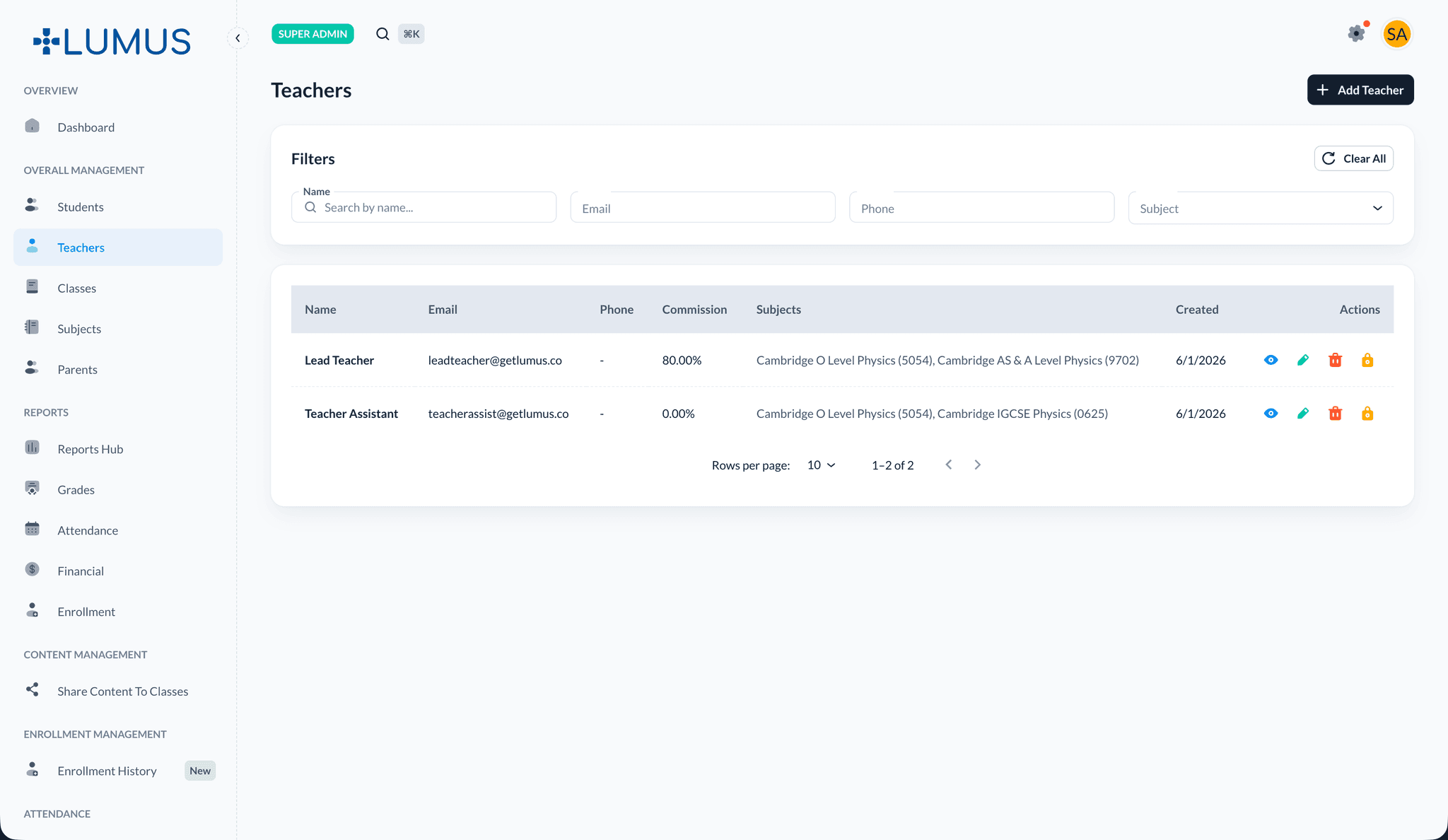
Use the lock icon in the Teachers list row actions to enable or disable account access. Deactivated accounts cannot log in but their data is preserved.
Resetting Passwords and Account Access
- Go to Teachers and locate the staff member
- Use the row actions to manage account access (lock icon) or reset credentials as needed
- Share any newly generated temporary password with the teacher
Permission Management
Teacher permissions are scoped by role and class assignment:
- Lead Teachers manage classes they lead
- Teaching Assistants manage only classes they are assigned to
- Feature access (settings tabs, reports, etc.) is controlled by your Super Administrator through feature modules
See Teaching Assistants for the full capability matrix.
Viewing Teacher Details
The teacher profile displays:
- Basic Information: Name, email, phone, department
- Subject Assignments: All subjects the teacher is assigned to
- Class Assignments: Current classes being taught
- Schedule: Weekly class schedule
- Student Count: Number of students across all classes
- Account Status: Active or inactive
Searching and Filtering Teachers
Search Functionality
Search teachers by:
- Teacher name
- Email address
- Subject name
- Department
Filter Options
Filter teachers by:
- Subject: View all teachers teaching a specific subject
- Department: Filter by department
- Status: Active, Inactive
- Class Assignment: Teachers with or without classes
The teacher list shows name, email, phone, commission, subjects, created date, and row actions (view, edit, delete, account access).
Assigning Teachers to Classes
Teachers are assigned to classes through Classes when you create or edit a class. View a teacher's classes from the class list filtered by teacher, or open each class's Class Roster and schedule tabs.
Best Practices
Troubleshooting
Issue: Teacher cannot log in
- Solution: Check account status, verify credentials, and ensure account is activated
Issue: Teacher not appearing in class assignment options
- Solution: Verify the teacher is assigned to the subject required for that class
Issue: Cannot assign subject to teacher
- Solution: Ensure the subject exists in the system and is active
Related Topics
- Class Management - Learn how to assign teachers to classes
- Student Management - Understand student-teacher relationships
- Reports & Analytics - Generate teacher performance reports